

Back in August, we announced a new Partner API (BETA). Earlier this month, we launched our Phase 1 MCP Connector (BETA).
Today, we are happy to announce our Phase 2 MCP Connector is now available in all regions.
Since the AI connector launched earlier in October, your assistant has been able to see and manage every account you look after.
Today it can also tell you what happened on them. The call history that 1Stream records for each connected system, with the CRM contact, the ticket and the AI call summary attached to every call, is now part of the conversation, alongside click-to-dial and a handful of smaller improvements.
In one sentence: ask your assistant who called, what it was about, which ticket, project, opportunity, contact, and company it belongs to and how the queues did, and it answers from 1Stream's own record of the call, not from a report you had to build.

Call history, as your CRM sees it
-
Every account connected to 1Stream has a record of its calls that the base call logs itself does not keep: who the caller was in your CRM, which ticket the call belongs to, what was said. Your assistant can now read that record and answer from it.
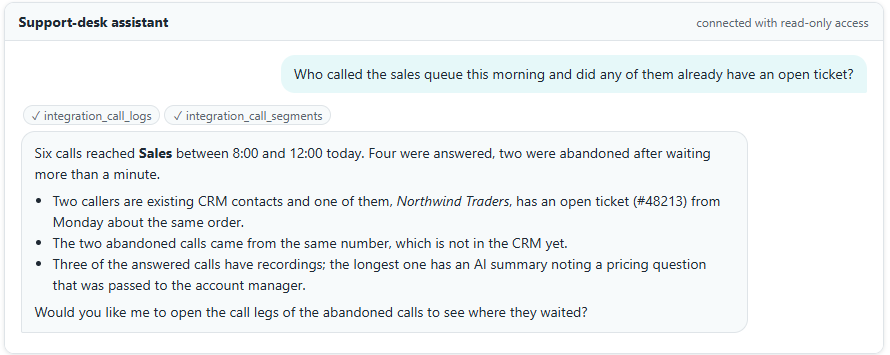
- Call history with the CRM attached. Every call with its parties, the queue, menu or ring group it passed through, talk and wait times, the CRM contact and ticket linked to it, and a link to the recording where one exists. Newest first, or oldest first when you ask for the start of the story.
- AI call summaries in the answer. On accounts with the AI call service, each call carries its summary, next steps, sentiment and coaching notes, so the assistant can tell you what a call was about without anyone listening back.
- Statistics without a report builder. Totals of inbound, outbound and unanswered calls for any range; one row per extension with talk time; one row per hour of the working day. Ask for the busiest hour or the quietest agent and get the number.
- Call legs, hop by hop. How one call travelled: which extension, trunk, ring group, queue, voicemail box or menu each leg went to, for how long, and whether that leg was recorded.
- Queue login history. Every time an agent logged in to or out of a queue, with the time; the companion to the live staffing view.
- Who is who across the CRM. Every 1Stream user on the system with their extension, plan, role and the CRM member they map to, so "which agent is this ticket's owner" has an answer.
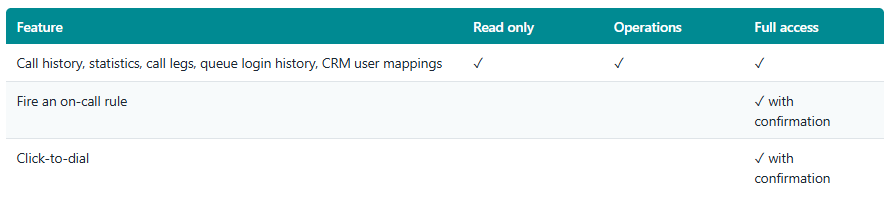
- Fire an on-call rule. Trigger one of the account's Signal on-call rules by name and the people it names are called, texted or e-mailed as the rule says. Because real people are alerted, the assistant always confirms with you first.
Click-to-dial
- Click-to-dial from the conversation. Ask the assistant to call a number from an extension: the extension's phones ring first and, once answered, the destination is dialled and the two are connected. Confirmed with you before it dials.
Smaller improvements
- Newest first. Call history starts with the most recent call, which is almost always the one you are asking about. Ask for the oldest first when you want the beginning of the story.
- Every leg has a name. Call legs to outside numbers are now labelled as such instead of being reported as unknown.
- Plain reasons. When a 1Stream account is not on a plan that includes call history, the assistant says exactly that, so nobody goes looking for a key problem that is not there.
Who gets it
Call history, statistics, legs, queue history, CRM mappings and on-call alerts are available on every 1Stream account has at least one Intelligence user. Systems on other plans keep everything the connector already did. Adding a user to an account turns the new features on for that system straight away, with nothing to configure.
Built for control
- Read-only means read-only. Call history and statistics are reads, so a read-only connection gets them; firing an on-call rule and placing a call are actions, so they live in full access and always ask first. The Operations level, built for a support desk, gets the reads as well.
- Your data stays in your region. Call history is read from the 1Stream account in the same region as the base account, by the service that already hosts your account.
- Nothing to set up. The connector finds the 1Stream account on its own. There is no key to copy, no link to make, and nothing new to maintain.
For developers
The same features are nine new routes on the 1Stream Partner API under each account's integration resource: call logs, call statistics (summary, by extension, by hour), call legs, queue login history, CRM user mappings, recording download and on-call events, plus a route to place a call. They use the keys and access rules you already have, and client-limited keys apply to them in the same way.
Getting started
The update is live now for every partner account in every region. If your assistant was connected before today, reconnect it once so it picks up the new tools; a new connection has them from the start. The connection guide and the API documentation have been updated to match.