

-1-1.png)
-1.png?width=2000&height=600&name=Untitled%20design%20(5)-1.png)
Previously, we posted our New Partner Control API (BETA), and New 1Stream MCP (BETA).
Until now, a Partner API key reached every system on your account: your own systems and every customer's. That is right for your internal tooling, and wrong for anything you hand to a client. Today you can create a key that is limited to the systems you choose. Everything that key does, through the REST API or through an AI assistant connected over MCP, sees those systems and nothing else on your account.
In one sentence: one key per client, scoped to that client's systems, created in the Control Portal in under a minute, usable by the client's own app or by Claude, ChatGPT or any other assistant that speaks MCP.
What a limited key can and cannot do
It can:
- List, read and manage only the phone systems it was created for: status, extensions, queues, ring groups, trunks, call history, reports, recordings, voicemail, health, everything the API offers.
- Be used by a client's own application through the REST API, or by an AI assistant connected over MCP with the same key.
- Use every existing key control unchanged: the IP allowlist, rotation, disable and enable, the hosted-assistant option.
- Tell its caller what it is: whoami and GET /v1/partner/me now return the key's systems.
It cannot:
- See any other systems on your account. A system outside the key's list answers exactly as a system you never owned, in every call and every tool.
- Manage Control Portal logins and roles. Those are account-wide administration, so a limited key is refused there with a clear reason.
- Have its list of phone systems changed. The list is fixed when the key is created; to change it, create a new key and retire the old one.
Creating one in the Control Portal
- Open Partner API in the Control Portal and choose Create API key.
- Give the key a name that says who it is for, for example the client's company name.
- Tick Limit this key to specific phone systems. A list of your phone systems appears; filter it and tick the client's systems. The count of selected systems is shown as you go.
- Fill in the allowlist as usual, or tick Allow hosted AI assistants if the client will connect an assistant such as Claude.
- Create the key and copy the secret. It is shown once.
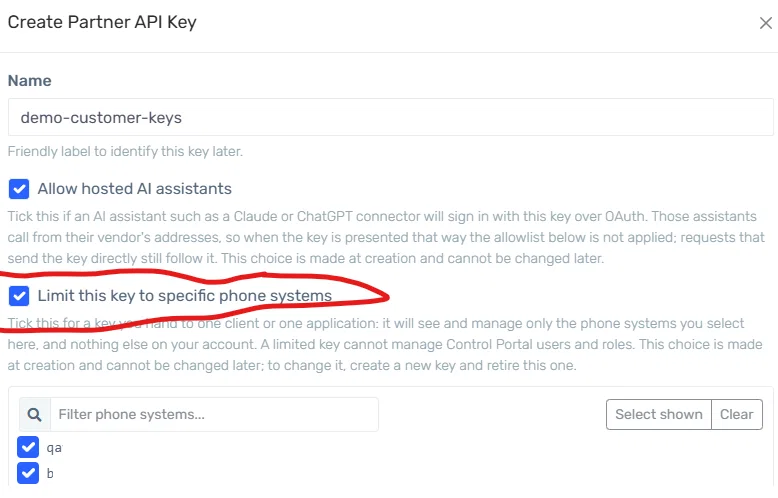
Creating a key limited to two systems in the Control Portal.
The key list shows which systems each key reaches. An unrestricted key reads All; a limited key shows how many systems it holds, and hovering names them.
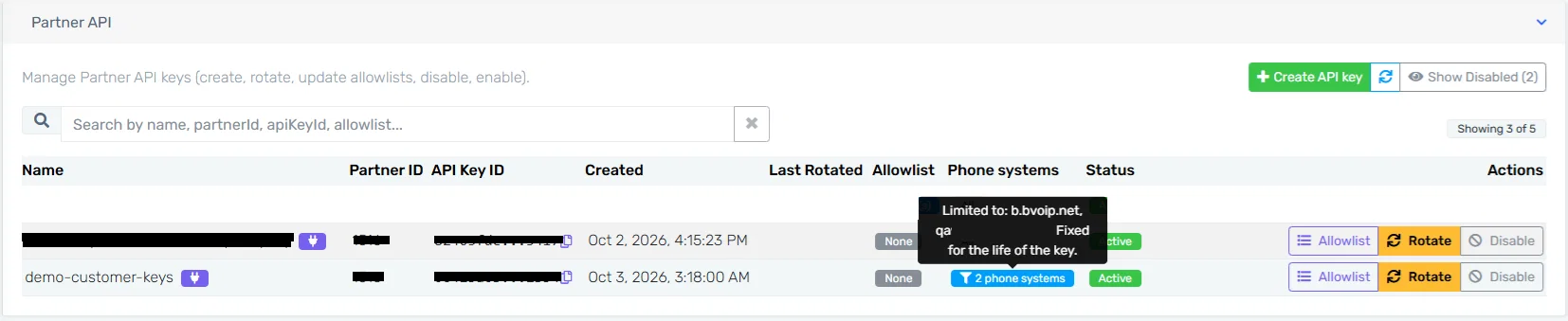
The key list: an unrestricted key reads All; the limited key names its two systems on hover.
What the client's assistant sees
Connect an assistant with a limited key and it sees a one-client estate. Asking it to list the phone systems returns only the client's; asking about anything else on your account comes back as not found, the same answer a stranger would get. The assistant's own identity check confirms the limit before it touches anything.
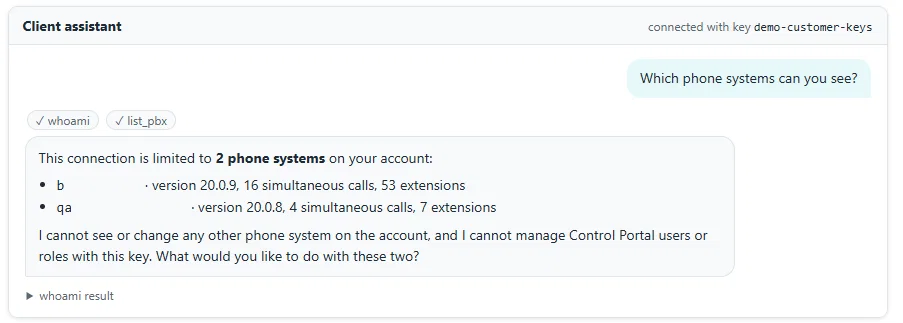
An assistant connected with the limited key sees a two-system estate and says so before it acts.
For developers
- pbxIds on every key response in the Control Portal's key management: the phone systems the key holds, empty for an unrestricted key.
- pbxScope on GET /v1/partner/me and the whoami tool: the same list, so an app can confirm which client it is acting for.
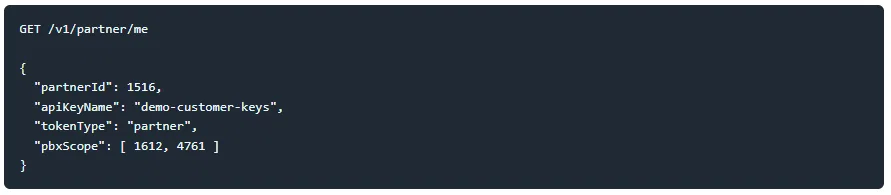
Every other call behaves as before. GET /v1/pbx returns only the systems in scope; a call naming any other system id returns 404; the Control Portal user and role routes return 403 with a message explaining that the key is limited to specific systems.
Getting started
The feature is live now for every partner account. Create a limited key from the Control Portal's Partner API page, give it to your client's application or connect their assistant with it, and the rest is already in place. Your existing keys are untouched and keep reaching your whole account.