


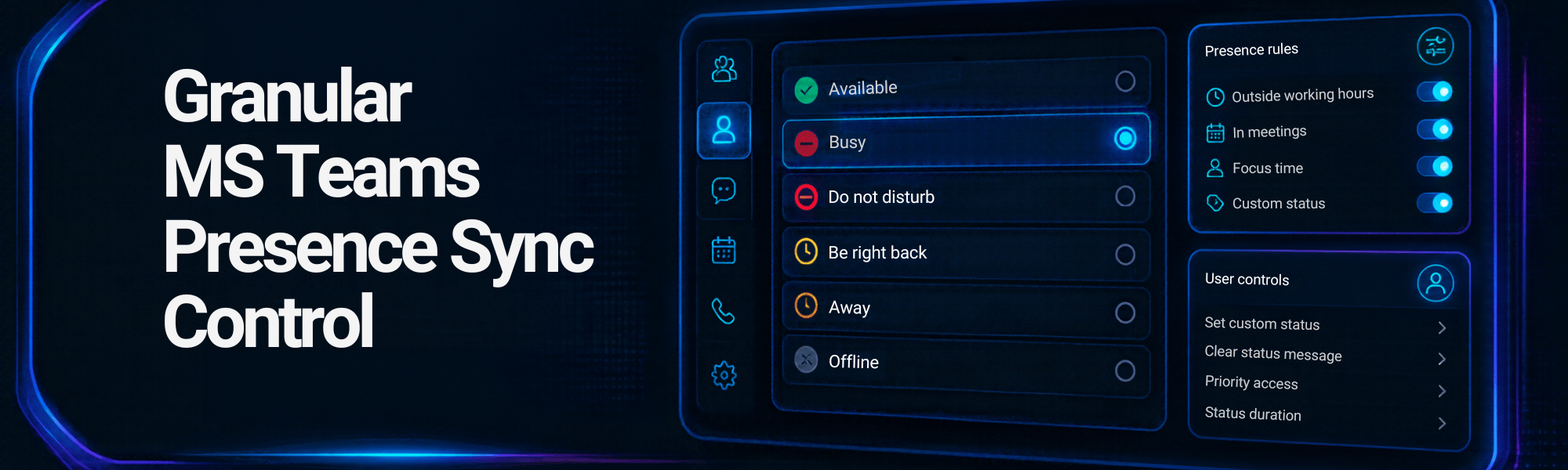
Based on partner request, we have added granular Microsoft Teams Presence Sync Control into our Control Portal.
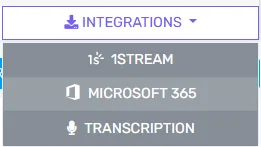
Navigate to the Integrations Menu, Select Microsoft 365
Assuming you have already enabled the based Microsoft 365 Integration, scroll down to Sync Presence, make sure your Teams presence authorization is: Authorized
Also make sure one or both of these options are set to YES
- Update presence from Phone System Apps to Teams clients
- Update presence from Teams clients to Phone System Apps
Click on Change Default Presence. You will find an expanded menu with all the default Microsoft Teams Statuses and also the default Phone System Statuses.
Select the drop downs next to each status to pick which status you want to match.
