1Stream Integrates with SpaceX AI - GROK
Starting in October 2026, 1Stream partners can now process transcriptions with SpaceX AI's GROK.
SpaceX AI - Grok offers a significantly lower-cost alternative compared to Google, OpenAI transcription. Key features of Grok integration include the following:
- Transcription costs approximately $0.10 per hour
- Support for more than 30 auto-detected languages
- Stereo per-channel speaker separation
- Simplified setup using only an API key
- Create an xAI Account
- Head over to the official xAI Console.
- Click Create Account or log in if you already have one. You can sign up using your X (Twitter) account, Google account, Apple ID, or a standard email address.
- Agree to the terms of service to reach the main dashboard.
2. Set Up Funding (Required)
- Before your keys will work, you must add usage credits to your account.
- Navigate to the Billing or Purchase Credits section in the console.
- Add a payment method and purchase an initial amount of credits (you can also configure automatic top-ups so your applications don't lose connection).
3. Generate the API Key
- Look at the left-hand sidebar on the dashboard and click on API Keys.
- Click the Create API Key button located in the top-right corner of the screen
- Configure your key settings:
- Name: Give your key a recognizable label (e.g., "Development-Test").
- Permissions: Choose whether you want the key to have full or restricted access.
- Model Access: You can choose to enable all endpoints or limit the key to specific versions like grok-4.6.
- Click Save or Create
TIP!
Your generated API key (which typically begins with the prefix xai-) will only be displayed once. Copy it immediately and save it in a secure location, like a password manager. If you close the window before saving it, you will have to delete it and create a new one.
4. Add your API key into your 1Stream Account
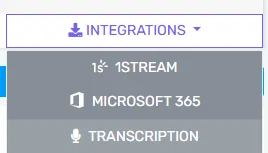
- Select an account to manage in the 1Stream Control Portal
- Go to the Integrations Menu (top, right)
- Click on Transcription
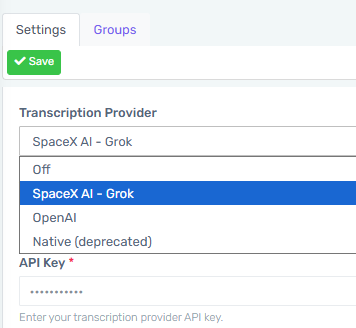
- Select SpaceX AI - Grok from the Transcription Provider Menu
- Add your API Key
- Press Save